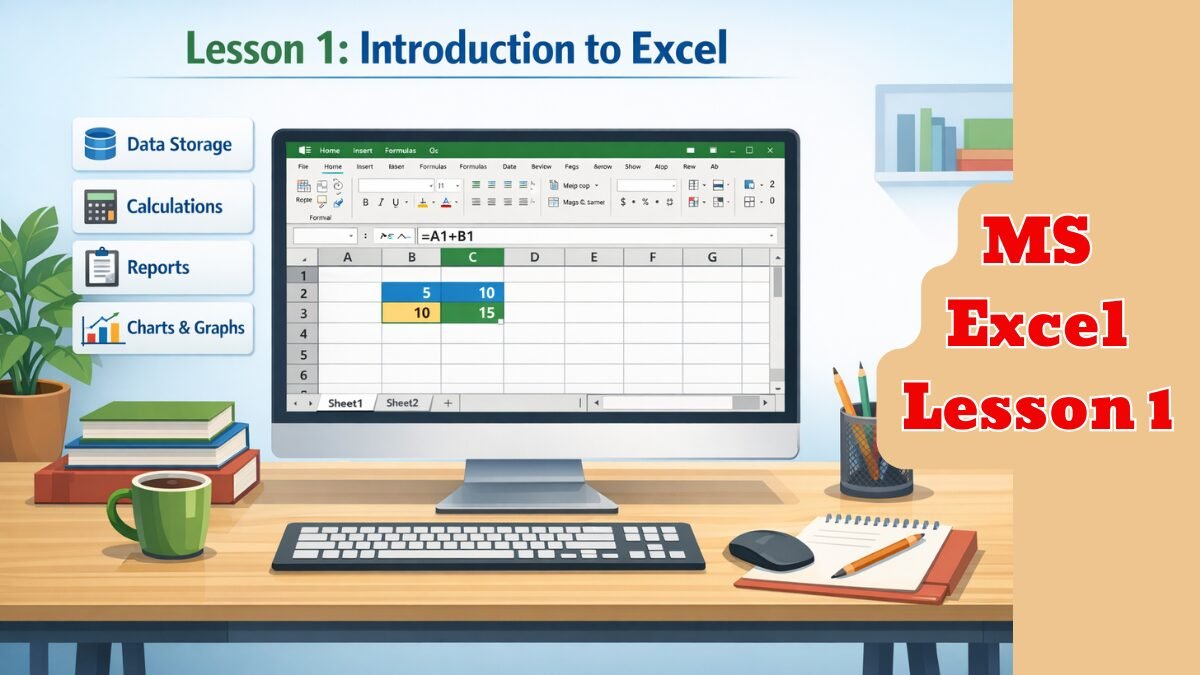
MS Excel Lesson 1: Excel क्या है?
MS Excel Lesson 1 – Introduction to Excel. Understand Excel basics like workbook, worksheet, rows, columns, cells, formulas, and…
MS Excel एक Spreadsheet Software है, जिसका उपयोग:
- डेटा स्टोर करने
- गणना (Calculation) करने
- रिपोर्ट बनाने
- चार्ट और ग्राफ तैयार करने
के लिए किया जाता है।
👉 Excel का सबसे ज़्यादा उपयोग Office, Bank, School, Business और Accounting में होता है।
Excel क्यों सीखना ज़रूरी है?
- 📊 डेटा को व्यवस्थित (Manage) करने के लिए
- 🧮 तेज़ और सही Calculation के लिए
- 📈 रिपोर्ट और Analysis बनाने के लिए
- 💼 Job और Promotion के लिए बहुत ज़रूरी स्किल
#Excel कहाँ-कहाँ उपयोग होता है?
- ऑफिस वर्क
- अकाउंटिंग
- स्कूल/कॉलेज रिज़ल्ट
- बैंकिंग रिपोर्ट
- बिजनेस डेटा
- स्टॉक और सेल्स रिपोर्ट
Excel की मुख्य फाइल को क्या कहते हैं?
- Excel फाइल = Workbook
- Workbook के अंदर पेज = Worksheet / Sheet
🔹 Excel के मुख्य भाग (Parts of Excel)
1️⃣ Title Bar – ऊपर फाइल का नाम दिखाता है
2️⃣ Ribbon – सभी Tools और Options
3️⃣ Quick Access Toolbar – Save, Undo, Redo
4️⃣ Formula Bar – Formula लिखने की जगह
5️⃣ Column – A, B, C, D… (खड़े)
6️⃣ Row – 1, 2, 3, 4… (आड़े)
7️⃣ Cell – Row और Column का मिलन
👉 जैसे: A1, B2, C5
8️⃣ Sheet Tab – नीचे Sheet1, Sheet2
9️⃣ Status Bar – Sum, Average आदि दिखाता है
🔹 Cell Address क्या होता है?
Column + Row = Cell Address
👉 उदाहरण:
- A1
- B5
- D10
🔹 Excel Versions
- MS Excel 2007
- MS Excel 2010
- MS Excel 2016
- MS Excel 2019
- MS Excel 2021
- MS Excel 365
🔹 Excel कैसे खोलें?
Method 1:
Start → All Programs → Microsoft Office → MS Excel
Method 2:
Search Box में लिखें → Excel → Enter
🔹 Excel में डेटा के प्रकार
1️⃣ Text – Name, City
2️⃣ Number – 10, 500, 2500
3️⃣ Date – 12/01/2025
4️⃣ Formula – =A1+B1
🔹 Practice (आज का अभ्यास)
✔ Excel खोलें
✔ 5 Row और 5 Column में डेटा लिखें
✔ A1 से E5 तक Cell पहचानें
✔ Sheet का नाम बदलें
🔑 Shortcut Keys
- New Workbook → Ctrl + N
- Open → Ctrl + O
- Save → Ctrl + S
- Close → Ctrl + W
📌 Lesson 1 Summary
✔ Excel क्या है
✔ Excel के Parts
✔ Workbook और Worksheet
✔ Cell, Row, Column
✔ Excel का उपयोग